
Email Signature Banners
Turn every email your team sends into a campaign touchpoint. Upload a banner, target it to departments or the entire organization, set a schedule, and deploy. No per-user setup. No manual swaps.

What is the problem with manual email banners?
Adding a banner to one person's email signature takes two minutes. Adding it to 50 people means 50 separate updates, 50 chances for the wrong link, the wrong image, or a forgotten swap when the campaign ends.
Most teams try this once and give up. Marketing creates a banner, emails it to the team with instructions, and half the people never update their signature. The other half get it wrong: stretched images, broken links, outdated promotions still running three months later. The result is inconsistency. Your sales team promotes last quarter's webinar. Your support team still has the holiday banner in March. New hires have no banner at all.
Email signature banners only work as a channel when they are centrally managed: one place to upload, one place to schedule, one place to deploy. SyncSignature handles the entire email signature campaign from upload to deployment.
Trusted by 30,000+ professionals across 1000+ businesses


How It Works
Upload Your Banner
Design a banner or pick a template. Set the destination URL. Recommended size: 600×150px, under 150KB, PNG or JPEG.
Target and Schedule
Assign the banner to your whole team or specific departments using groups from your Google Workspace or Microsoft 365 directory. Set start and end dates. When one campaign ends, the next in your queue starts automatically.
Deploy to Every User
SyncSignature pushes the banner to every assigned user's email signature through the Gmail API or Microsoft 365 Centralized Deployment. No one needs to copy-paste anything. Signatures update across the organization within hours.
Upload Your Banner
Design a banner or pick a template. Set the destination URL. Recommended size: 600×150px, under 150KB, PNG or JPEG.
Target and Schedule
Assign the banner to your whole team or specific departments using groups from your Google Workspace or Microsoft 365 directory. Set start and end dates. When one campaign ends, the next in your queue starts automatically.
Deploy to Every User
SyncSignature pushes the banner to every assigned user's email signature through the Gmail API or Microsoft 365 Centralized Deployment. No one needs to copy-paste anything. Signatures update across the organization within hours.
Campaign Scheduling and Rotation
Set start and end dates for every banner. Queue multiple campaigns to run in sequence: a product launch in April transitions to a conference banner in May transitions to a summer hiring push in June. No manual intervention.
Between campaigns, set an evergreen banner (your latest content, a “book a demo” CTA, or your careers page) so the space is never empty. SyncSignature handles the swap at midnight on the date you set.
This is how teams run quarterly banner rotations without anyone remembering to change anything. Q1 gets a New Year push and annual kickoff. Q2 runs event registration and case study promotions. Q3 covers product launches. Q4 handles holiday banners and year-end messaging. Each campaign deploys and expires on schedule.
Group-Based Targeting
Not every department should show the same banner. Sales reps need a case study or demo CTA. Marketing promotes the latest blog post. HR highlights open roles. Support shares a product update or survey link.
SyncSignature pulls groups directly from your Google Workspace or Microsoft 365 (Azure AD / Entra ID) directory. Assign different banners to different departments, offices, regions, or custom groups. Each group sees only the banner relevant to their audience.
Run parallel campaigns: sales gets one message, marketing gets another, and the CEO gets something else entirely. All from a single dashboard, all deployed automatically.

Deploy Through Google Workspace and Microsoft 365
SyncSignature is not a browser plugin that each employee installs. It connects to your existing directory and deploys banners through the same infrastructure your IT team already manages.
For Google Workspace, SyncSignature writes banners directly to each user's Gmail signature via the Gmail API. The admin authenticates once, and every user's signature updates without their involvement.
For Microsoft 365, SyncSignature reads your directory through Microsoft Graph API and deploys banners via an Outlook add-in through Microsoft 365 Centralized Deployment. The admin approves the add-in once in the M365 admin center, and it propagates to every user's Outlook on desktop, web, and mobile. No Exchange transport rules. No mail flow changes. Email content never leaves Microsoft.
No per-user action. No installation emails. No “please update your signature by Friday” messages that half the team ignores.
Banner Design Specs
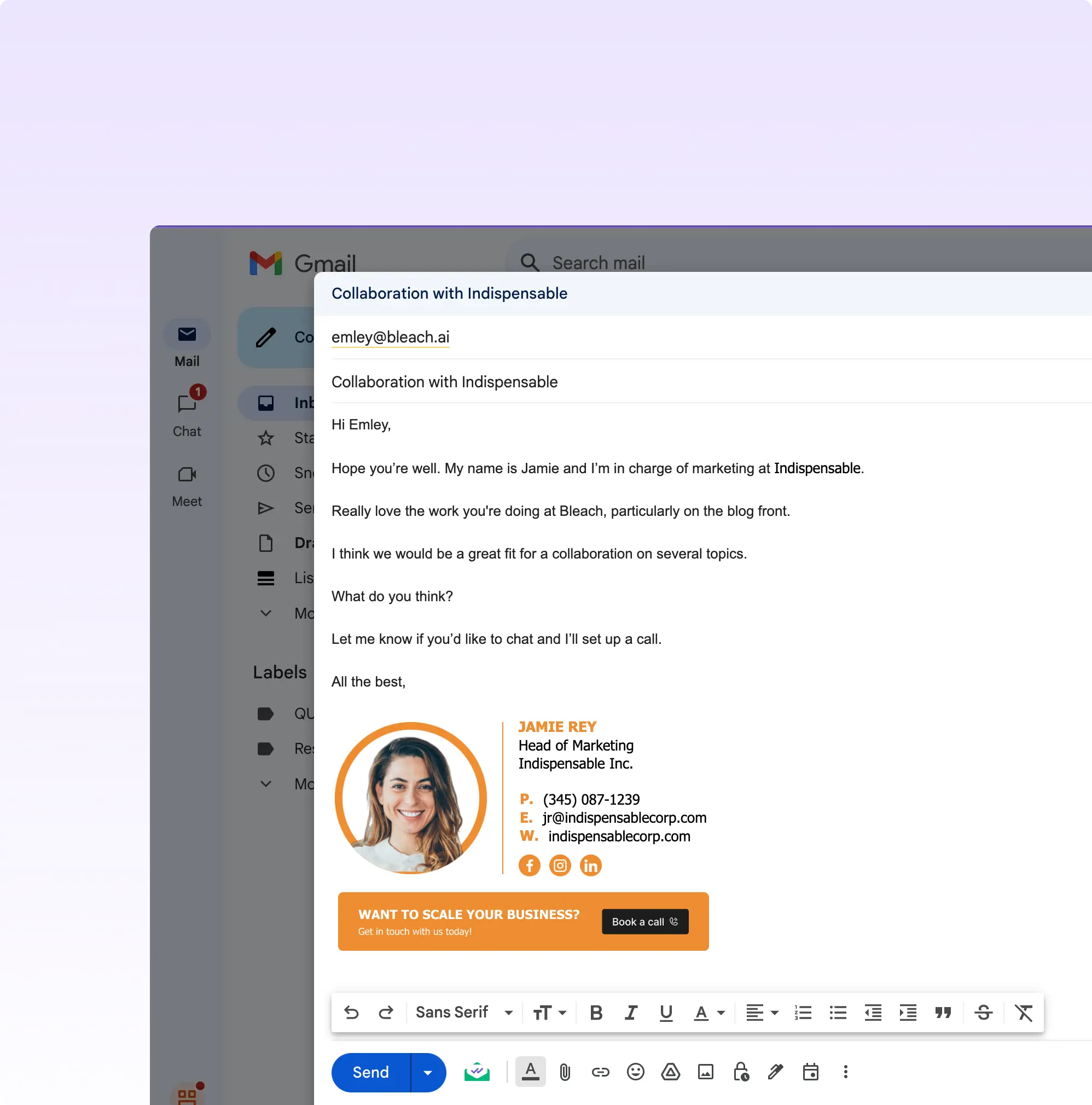
Getting dimensions right matters. An oversized banner triggers clipping in Gmail. An undersized one looks blurry on high-DPI screens.
Recommended size: 600px wide, 100 to 200px tall. Most teams use 600×150px. Width should always be 600px since email clients render signature content within a roughly 600px container.
File format: PNG for text and logos, JPEG for photo-heavy banners, GIF for animation (note: Outlook desktop renders only the first frame of animated GIFs, so design the first frame to carry the full message).
File size: Under 150KB. Larger files load slowly and trigger image blocking in some corporate email environments.
Design rules: One CTA per banner. Use your brand colors and logo. Test readability at 50% zoom for mobile. Maintain at least 4.5:1 contrast ratio between text and background. Add alt text for recipients who block images.

Email Signature Banner Examples by Use Case
Promotional and sales banners. Seasonal discount, free trial offer, webinar registration, case study download. One headline, one supporting line, one CTA button. Keep the headline under 10 words.
Event and webinar banners. Event name, date, what the attendee gets, and a registration CTA. Swap to a recording link once the event passes.
Holiday and seasonal banners. Happy holidays in December, New Year in January, company anniversary, cultural observances relevant to your audience. These often get the highest engagement because they feel less promotional.
Hiring and recruitment banners. “We're hiring” headline linking to your careers page. Every outbound email reaches someone who might know your next hire.
Content and thought leadership banners. Latest blog post, industry report, podcast episode. Works well for consulting, SaaS, and professional services where expertise is part of the sales cycle.
Compliance and disclaimer banners. Confidentiality notices for law firms, financial disclaimers for advisory firms, regulatory disclosures. Text-heavy, less visual, but critical for regulated industries that need consistency across every employee's email.
What Our Customers Say About SyncSignature





It makes managing email signatures for the whole team fast and centralized. I don't like chasing people to update their signature. Changes apply automatically. Integration with Google Workspace works without issues.

Alexander B.
Marketing Director
As someone managing multiple businesses using Google Workspaces for emails, having a comprehensive email signature management tool is essential, and SyncSignature has already proven to be the ideal solution.

Christophe
Founder - AI services
Frequently asked questions
An email signature banner is a clickable image placed below your email signature. It promotes campaigns, events, content, or announcements inside every email your team sends. Unlike the signature itself (which contains contact info and stays static), the banner is a campaign layer that rotates based on what your organization wants to promote.
600 pixels wide by 100 to 200 pixels tall. Most teams use 600×150px as the standard. Keep file size under 150KB. Use PNG for text-heavy designs, JPEG for photo-based banners, and GIF for animation (Outlook desktop only renders the first frame).
Width should always be 600px. Email clients (Gmail, Outlook, Apple Mail) render signature content within a roughly 600px container. Height between 100px and 200px, depending on how much content you need. Going wider causes horizontal scrolling. Going narrower leaves whitespace.
Yes. Animated GIF banners work in Gmail, Apple Mail, and Outlook on the web. Outlook desktop renders only the first frame, so design that frame to carry the full message. Keep GIF file sizes under 200KB.
With SyncSignature, upload the banner in the dashboard, assign it to groups from your Google Workspace or Microsoft 365 directory, set a schedule, and deploy. Every team member's signature updates automatically. No per-user setup required.
For individual users: Settings (gear icon) > See all settings > General tab > Signature section > click the image icon > upload your banner > click the inserted image > click "Link" > paste your target URL. For teams on Google Workspace, SyncSignature deploys banners via the Gmail API without any per-user action.
For individual users: File > Options > Mail > Signatures > select your signature > Insert > Pictures > select your banner > right-click the image > Hyperlink > paste your URL. For teams on Microsoft 365, SyncSignature deploys through the Outlook add-in via Centralized Deployment. No Exchange transport rules needed.
Yes. SyncSignature uses group-based targeting from your Google Workspace or Microsoft 365 directory. Assign different banners to sales, marketing, HR, support, or any directory group. Each department sees only their assigned banner.
Yes. Set start and end dates for each campaign. Queue multiple banners to run in sequence. When one ends, the next starts. No manual swaps.
Quarterly at minimum. Event-driven banners should match the campaign timeline (start when registration opens, stop when the event ends). Between campaigns, use an evergreen banner so the space is never empty.
No, when done correctly. Signature banners are inline images, which are standard in business email. Keep file sizes under 150KB, use hosted images rather than embedded attachments, and avoid URL shorteners that spam filters flag. SyncSignature hosts banner images on its CDN for fast loading and clean deliverability.
One action per banner. Be specific: "Download the 2026 SaaS Report" outperforms "Check out our resources." Use a visual button element (contrasting color, clear text) rather than a text link. Match the CTA to the sender's context: sales reps link to demos, marketers link to content, HR links to careers.
Yes. Holiday banners (New Year, end-of-year holidays, Thanksgiving, company anniversaries) are often the highest-engagement banner type because they feel less promotional. Schedule them to activate for the relevant period and swap back to your standard banner automatically.
The banner is the asset: the clickable image in your signature. Email signature marketing is the strategy: using that banner space as a campaign channel with scheduling, targeting, rotation, and measurement. SyncSignature provides both the banner deployment and the campaign management layer.
Agencies managing multiple client workspaces can deploy different banners per client. Each client workspace has its own templates, users, and banner campaigns. The agency admin manages everything from a parent dashboard without cross-contaminating client branding. See agency signature management for details.
No. SyncSignature connects directly to your Google Workspace or Microsoft 365 admin console. The marketing or ops team can manage banner campaigns without IT involvement. Initial setup (admin authentication) takes under 10 minutes.
SyncSignature includes link click tracking for banner campaigns. You can see how many clicks each banner generates across your team. Note: some recipients use email clients that strip tracking parameters, so treat click data as directional rather than absolute.
PNG for banners with text, logos, or sharp edges. JPEG for photo-heavy or gradient-rich designs. GIF for animated banners (keep in mind Outlook desktop only shows the first frame). Avoid BMP, TIFF, or WebP as email client support is inconsistent.
No. SyncSignature includes an email banner creator as part of the platform. Upload your own design or use a template, set the destination URL, assign it to groups, and deploy. No separate design tool, no third-party email signature banner creator needed.
As many as you have groups. Each directory group can have its own active banner. You can run parallel campaigns: sales shows one banner, marketing shows another, HR shows a third. All managed from one dashboard.
Not directly. Email clients do not support embedded video in signatures. Use a GIF preview of the video (3-5 seconds, first frame carries the message) linked to the full video on YouTube, Vimeo, or your website. This is the standard workaround.
A good template has your brand colors, a single headline (under 10 words), one supporting line, and a CTA button with contrasting color. Leave space for the message to change per campaign while keeping the layout, logo placement, and button style consistent. This creates visual familiarity across campaigns.
Start Running Banner Campaigns
Deploy your first email signature banner campaign across your team in under 10 minutes. No per-user setup. No IT tickets.